
Change Password at LUCKYTOWN PLUS - Complete Guide
How to Change Your LUCKYTOWN Password (While Logged In) - Step-by-Step
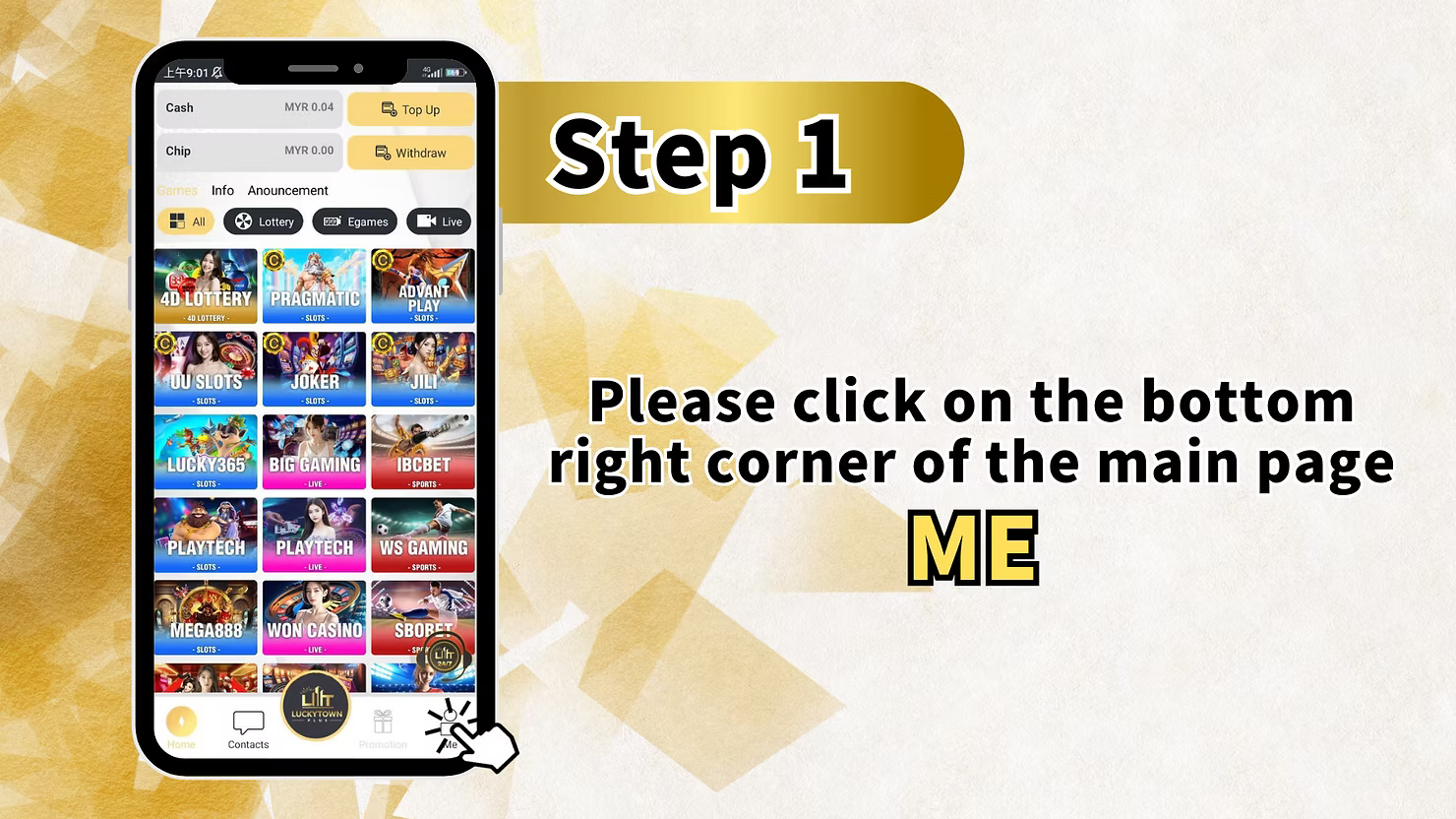
Step 1 - Click "ME" on the Bottom Right Corner of the Main Page
Open the LUCKYTOWN app or website, log in to your account, then click the ME icon at the bottom right corner of the main page. This opens your personal account menu.
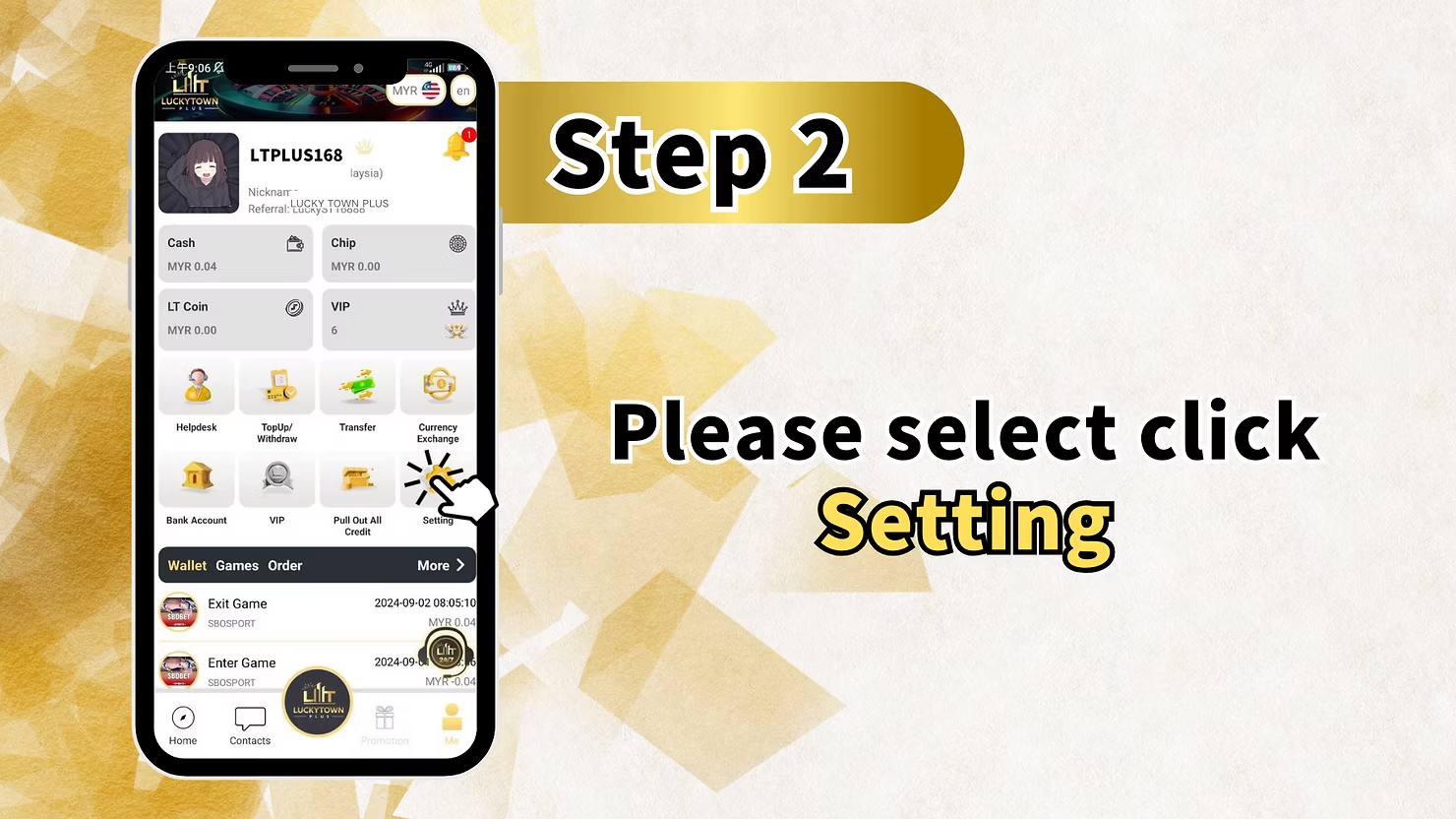
Step 2 - Select "Setting"
Inside the ME section, find and click Setting. This menu contains account tools such as Change Login Password, Change Payment Pin, Change Nickname, Change Phone Number, Switch Account, Google Authentication, Real Name Verification, language options, and more.
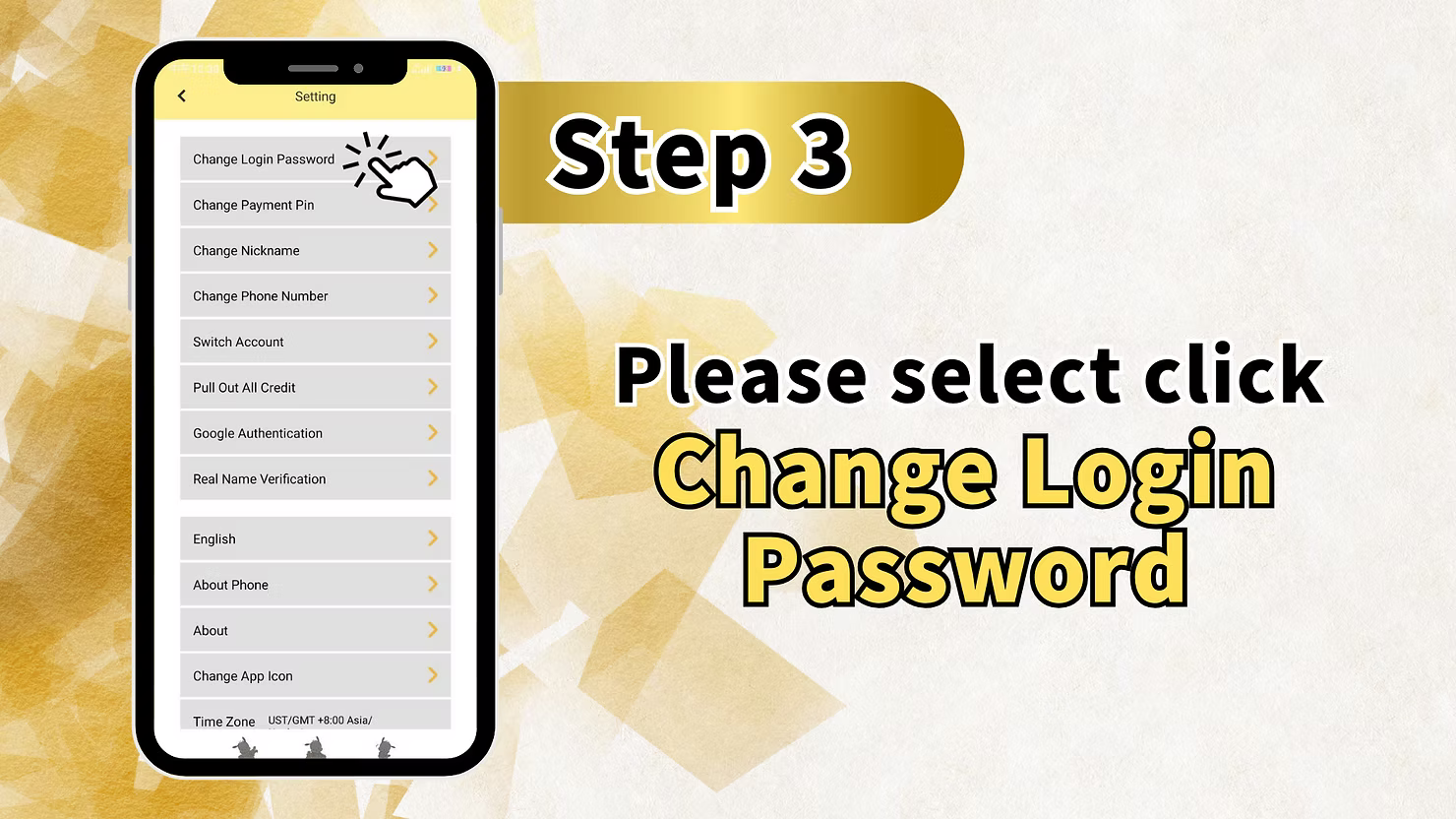
Step 3 - Select "Change Login Password"
In the Setting menu, click Change Login Password to open the password change screen where you can update your login details.
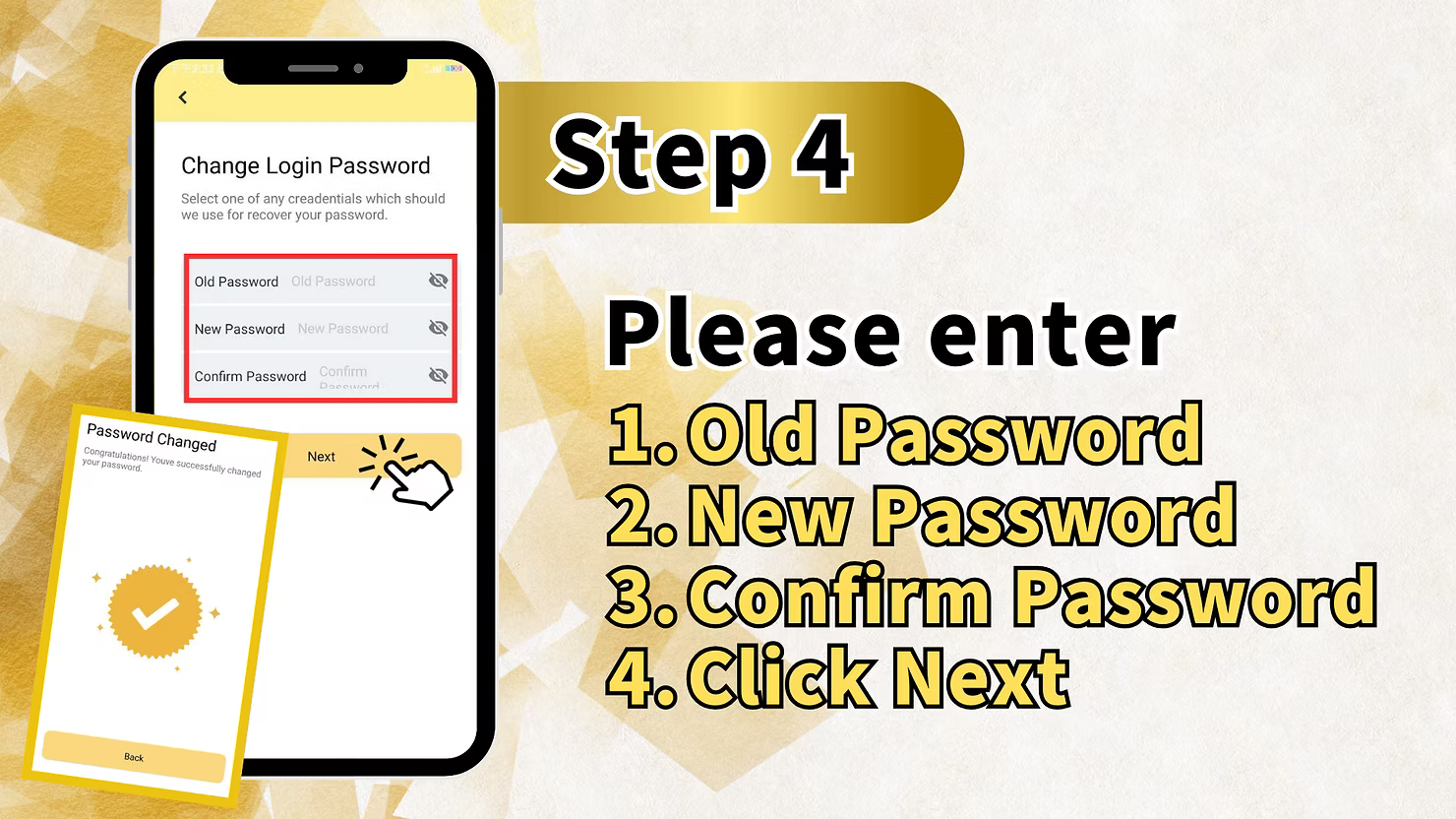
Step 4 - Enter Old Password, New Password, and Confirm New Password
Fill in all three required fields on the Change Login Password screen. Enter your current password in Old Password, create a new password in New Password, and type the same new password again in Confirm Password. Your new password must be at least 8 characters long, use letters and numbers only, and contain no spaces.
Step 5 - Click "Next" to Complete Password Change
After filling in all fields correctly, click Next. LUCKYTOWN will confirm that the password has been changed successfully, and you should use the new password for all future logins.
How to Recover a Forgotten LUCKYTOWN Password (From Login Screen) - Step-by-Step
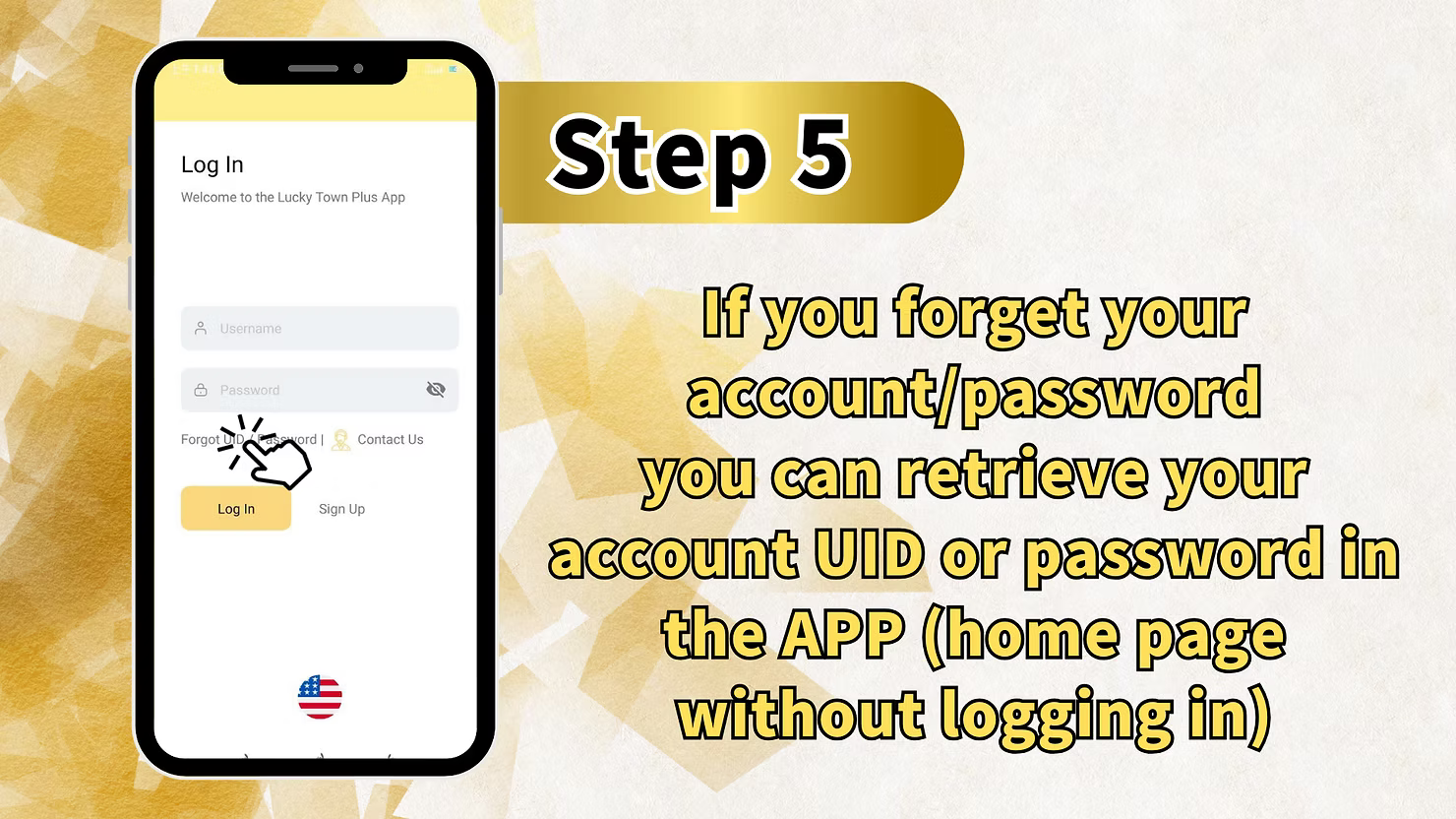
Step 1 - On the Login Screen, Click "Forgot Password?"
If you forgot your password and cannot log in, stay on the login page and click Forgot Password. You can also reach this through the Forgot UID / Password option on the login screen.
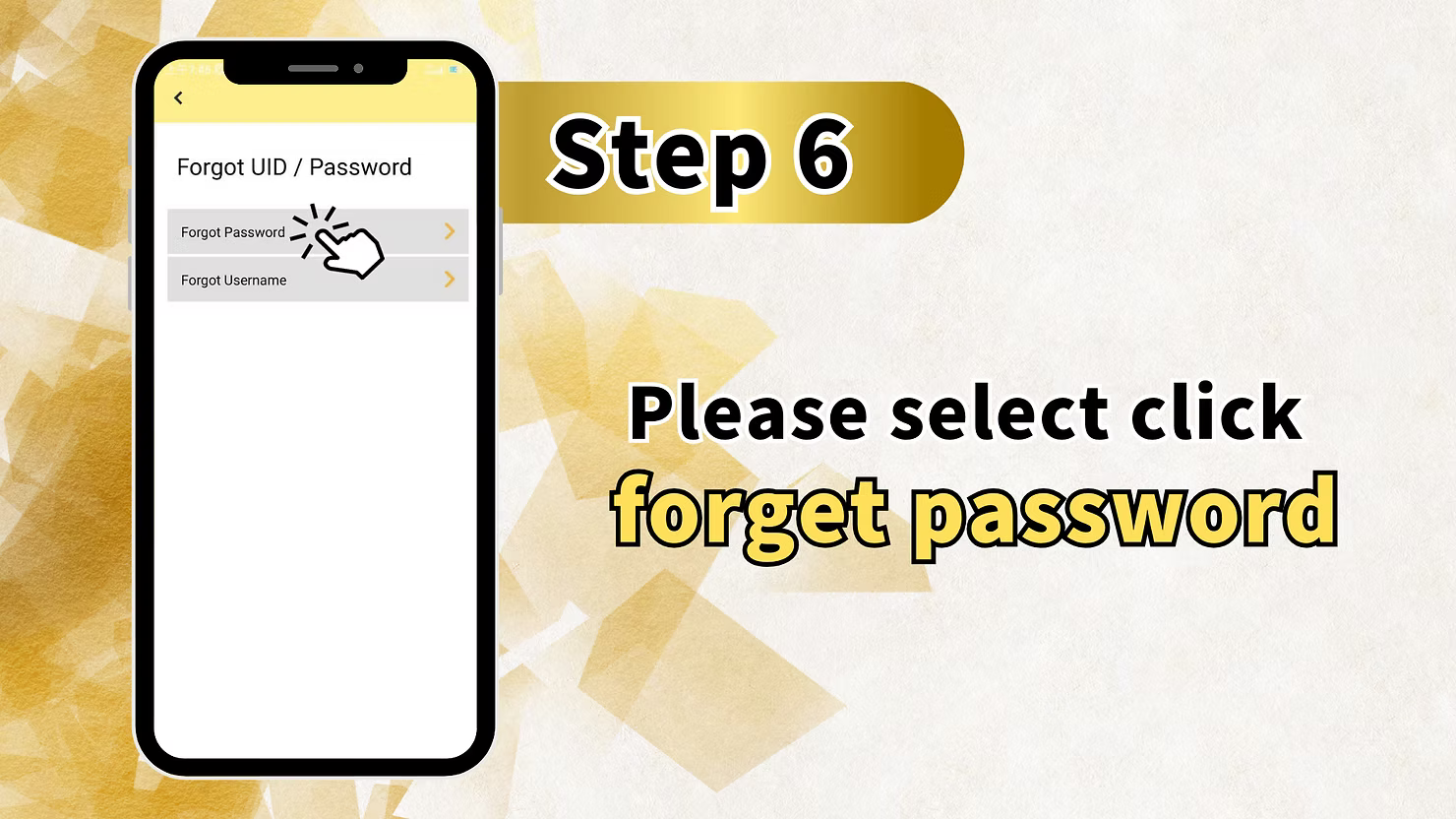
Step 2 - Select "Forgot Password"
On the Forgot UID / Password screen, choose Forgot Password to begin the password recovery process.
Step 3 - Enter Your Registered Phone Number and Username
On the Recover Password screen, enter your registered Malaysian phone number with the +60 country code and your LUCKYTOWN username. Then click Next to continue.
Step 4 - Click "Get OTP" and Enter the Verification Code
LUCKYTOWN will send a one-time password to your registered mobile number by SMS. Click Get OTP, then enter the verification code in the OTP field as soon as you receive it because the code is time-sensitive.
Step 5 - Enter Your New Password and Confirm
After OTP verification succeeds, create a new password and enter it again in the Confirm Password field. The new password must be at least 8 characters, use letters and numbers only, and contain no spaces. Click Next to submit.
Step 6 - Password Changed Successfully
LUCKYTOWN will confirm that your password has been changed. You can then return to the login screen and sign in with your new password. For better security, avoid reusing passwords from other platforms.
How to Recover a Forgotten LUCKYTOWN Username - Step-by-Step
Step 1 - On the Login Screen, Click "Forgot UID / Password"
If you forgot your LUCKYTOWN username, go to the login page and click Forgot UID / Password.
Step 2 - Select "Forgot Username" (Forgot User)
On the Forgot UID / Password screen, choose Forgot Username, which may also be labeled as Forgot User, to start the username recovery process.
Step 3 - Enter Your Registered Phone Number
On the Recover Username screen, enter your registered Malaysian phone number with the +60 country code, then click Get OTP to receive a verification code by SMS.
Step 4 - Enter OTP and Click "Next"
Enter the OTP code you receive on your phone into the OTP field, then click Next so LUCKYTOWN can verify your phone number and search for the user account linked to it.
Step 5 - Retrieve Your Username
After successful verification, LUCKYTOWN will display the username or usernames associated with your phone number. Make a note of the correct username, then return to the login screen and sign in with your recovered username and password.
LUCKYTOWN Password & Account Security - Important Tips
Password Requirements
LUCKYTOWN passwords must be at least 8 characters long, use letters and numbers only, and cannot contain spaces. Choose a strong password that you do not use anywhere else.
Keep Your OTP and Password Secure
Never share your password or OTP code with anyone. LUCKYTOWN support will not ask you for your password. If you receive a suspicious request, contact official support immediately.
Update Password Regularly
For stronger account protection, change your password every 3 to 6 months by using the Change Login Password feature in Settings.
Phone Number Must Be Active
Password recovery and username recovery both depend on access to your registered mobile number. Keep your number active and able to receive SMS messages. If your number changes, update it inside your LUCKYTOWN account settings.
What Should I Do If I Forget My LUCKYTOWN Password?
On the login screen, click Forgot Password, then enter your phone number and username, request the OTP, verify it, and create a new password. You do not need to be logged in for this recovery process.
What Should I Do If I Forget My LUCKYTOWN Username (UID)?
On the login screen, click Forgot UID / Password, choose Forgot Username, enter your registered phone number, request the OTP, verify it, and LUCKYTOWN will display your username or usernames.
Can I Change My LUCKYTOWN Password Without Knowing the Old Password?
No. If you are logged in and want to change your password normally, you must enter your old password. If you do not know it, use the Forgot Password recovery flow from the login screen instead.
What Are the LUCKYTOWN Password Requirements?
Your password must be at least 8 characters long and can only use letters and numbers, with no spaces. Choose a password that is strong and difficult to guess.
Why Didn't I Receive the LUCKYTOWN OTP Code?
Possible reasons include entering the wrong phone number, poor network signal, SMS blocking by your phone or carrier, or a previous unsubscribe from LUCKYTOWN SMS. Wait a minute or two, then request the code again. If it still does not arrive, contact customer support.
How Long Is the LUCKYTOWN OTP Code Valid?
LUCKYTOWN OTP codes are time-sensitive and usually expire within 3 to 5 minutes. Enter the code quickly after receiving it. If it expires, request a new OTP.
Can I Recover My LUCKYTOWN Account Without a Phone Number?
No. LUCKYTOWN requires your registered mobile phone number for both password recovery and username recovery. If you no longer have access to that number, contact LUCKYTOWN support to ask about manual verification options.
Need to Change Your Password or Recover Your Account? Start Now
Follow the step-by-step guides above to change your password while logged in, or recover a forgotten password or username from the login screen. New to LUCKYTOWN? Register first. Existing members can log in or use the recovery options whenever needed.
Start LUCKYTOWN Password Change / Recovery